
Simple and Effective Tips for Organizing Files on Your Computer
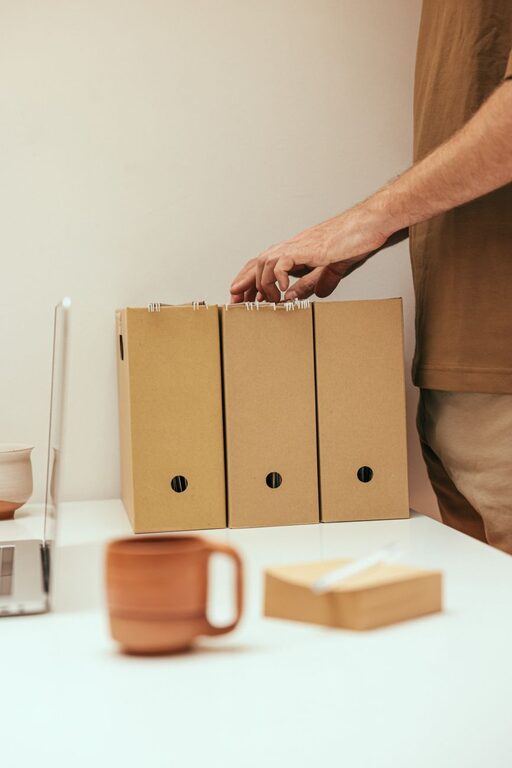
Keeping your computer files organized can save you time, reduce stress, and make work or personal projects run smoother. Whether you use your computer for work, school, or hobbies, a tidy file system helps you find documents quickly and prevents accidental loss. If your desktop or folders are overflowing with files, don’t worry! With a few practical strategies, you can create a simple, effective organizational system that works for you.
Why Organize Your Files?
Before diving into tips, it’s helpful to understand the benefits of organizing your files:
– Faster access: Quickly find important documents without endless searching.
– Reduced stress: A clear file system feels less overwhelming.
– Backup ease: Organized files make it simpler to back up and recover data.
– Improved productivity: Spend less time managing files and more time working.
Now, let’s explore some tried-and-true methods for organizing your computer files.
1. Create a Logical Folder Structure
A well-thought-out folder structure is the backbone of file organization. Instead of dumping all files into one or two folders, create categories that match how you work or the types of files you have.
Tips for creating folders:
– Keep it simple: Use broad categories that make sense, like “Work,” “Personal,” and “Photos.”
– Use subfolders: Break down categories further. For example, inside “Work,” have folders for “Reports,” “Presentations,” and “Invoices.”
– Be consistent: Use the same naming style for folders and subfolders to avoid confusion.
Example folder tree for personal use:
“`
– Personal
– Finances
– Health
– Travel
– Work
– Projects
– Meetings
– Training
– Media
– Photos
– Videos
– Music
“`
2. Name Files Clearly and Descriptively
File names play a big role in organization. Instead of vague titles like “Document1” or “Notes,” use names that describe the content.
Naming tips:
– Include dates (YYYY-MM-DD format) if relevant, to keep files in chronological order.
– Use keywords that help you recognize the file.
– Avoid spaces and special characters; use underscores or dashes instead.
Example:
`2024-06-01_ProjectReport_Q2.pdf`
`Vacation_Photos_2023_Beach.jpg`
3. Regularly Declutter and Delete Unnecessary Files
Over time, files accumulate that you no longer need. Schedule a routine—weekly, monthly, or quarterly—to review and delete outdated or duplicate files.
How to declutter effectively:
– Sort files by date or size to find the oldest or largest ones.
– Use tools or apps that help identify duplicate files.
– Move rarely used files to an external drive for archiving rather than deleting immediately.
4. Use File Tags and Metadata (If Supported)
Some operating systems, like macOS and Windows 10/11, allow tagging files with keywords or colors. This can add an extra layer of organization, especially when files belong to multiple categories.
How to use tags:
– Assign tags based on priority (e.g., “Urgent” or “To Review”).
– Use color codes to signify different projects or departments.
– Search for tags to quickly locate related files.
5. Take Advantage of Search and Sorting Features
Don’t rely solely on folders—your computer’s search function is a powerful tool when files are well named and tagged.
Pro tips:
– Use filters like date modified, file type, or size to narrow down search results.
– Combine search keywords with tags or folder locations.
– Use saved searches or smart folders for frequently accessed file groups.
6. Backup Your Organized Files Regularly
Even the best organization won’t protect you from hardware failures or accidental deletions. Backing up your files ensures your data is safe.
Backup suggestions:
– Use cloud services like Google Drive, OneDrive, or Dropbox for automatic syncing.
– Maintain external drives for offline backups.
– Set reminders to check and update your backups regularly.
7. Automate File Organization Where Possible
If you handle many files daily, automation can save time. Tools like Hazel (Mac), File Juggler (Windows), or built-in rules let you automate moving, renaming, or deleting files.
Automation ideas:
– Automatically sort downloaded files into folders by type.
– Rename files based on date or project when added to a folder.
– Remove duplicate files automatically.
8. Keep Your Desktop Clean
Your desktop should not become a dumping ground for files. Use it for temporary items only and clear it regularly.
Desktop organizing tips:
– Limit desktop icons to essential shortcuts and active projects.
– Move files to their proper folders immediately.
– Use desktop widgets or sticky notes for reminders instead of clogging the space with files.
Summary
Organizing computer files doesn’t have to be complicated. By creating a clear folder system, naming files descriptively, decluttering regularly, and using available tools like tags and automation, you’ll maintain a neat digital workspace. Remember also to back up files regularly to keep your data safe.
Start small—perhaps organize one folder today—and gradually build a system that fits your workflow. A tidy computer can make a big difference in your daily productivity and peace of mind.